Set up your sender
Choose the domain your emails come from, and a default sender name and address.
The Delivery page in Settings shows who sends your email, texts and calls, and how your account is connected to them. Under Delivery status, each of Email, SMS and Calls shows whether it's active.
Open Settings, then Delivery. Delivery status shows whether email, SMS and calls are active. They all read Not active until your sending is set up.
The Sender section
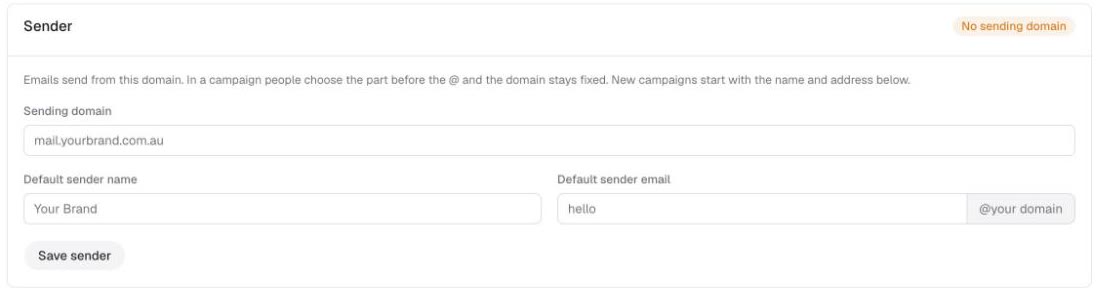
Emails send from your sending domain. When someone builds a campaign they choose the part before the @, and the domain stays fixed. New campaigns start with the default name and address you set here.
- Open Settings, then Delivery.
- Enter your Sending domain, for example
mail.yourbrand.com.au. - Enter a Default sender name, for example your brand's name.
- Enter a Default sender email. This is the part before the @, such as
hello. - Click Save sender.
A badge at the top right of the section shows the state. It reads No sending domain until you've set one.
Each brand has its own sender details
Brands under your head office each keep sender details in their own brand kit. See manage brands and your brand kit.
Related
Last updated 5 November 2026