Manage brands and your brand kit
Add and rename brands, and set the logo, colours and fonts new emails start with.
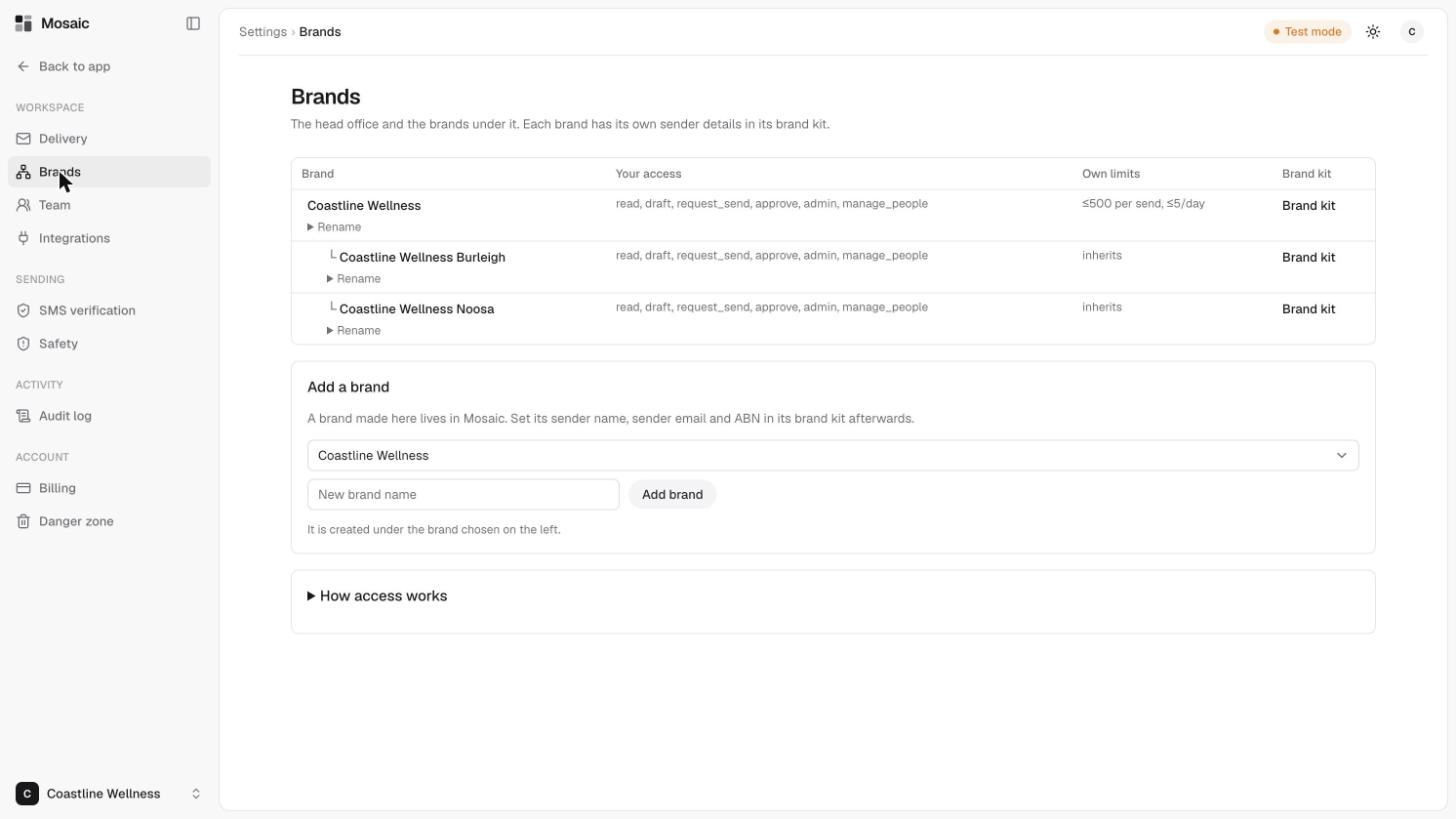
Open Settings, then Brands to see your head office and the brands under it. Each brand has its own sender details in its brand kit. To understand how brands fit together, see brands and your account.
The Brands table
For each brand you'll see:
- Your access, the permissions you hold there.
- Own limits, such as "500 per send, 5 a day". A brand that shows inherits uses the limit from the brand above it. See safety: the kill switch and sending limits.
- Brand kit, a link to its logo, colours and fonts.
Click Rename under a brand's name to change it.
Add a brand
- Under Add a brand, choose the brand it should sit under.
- Type the new brand name.
- Click Add brand.
A new brand is created under the brand you chose. Set its sender name, sender email and ABN in its brand kit afterwards.
The brand kit
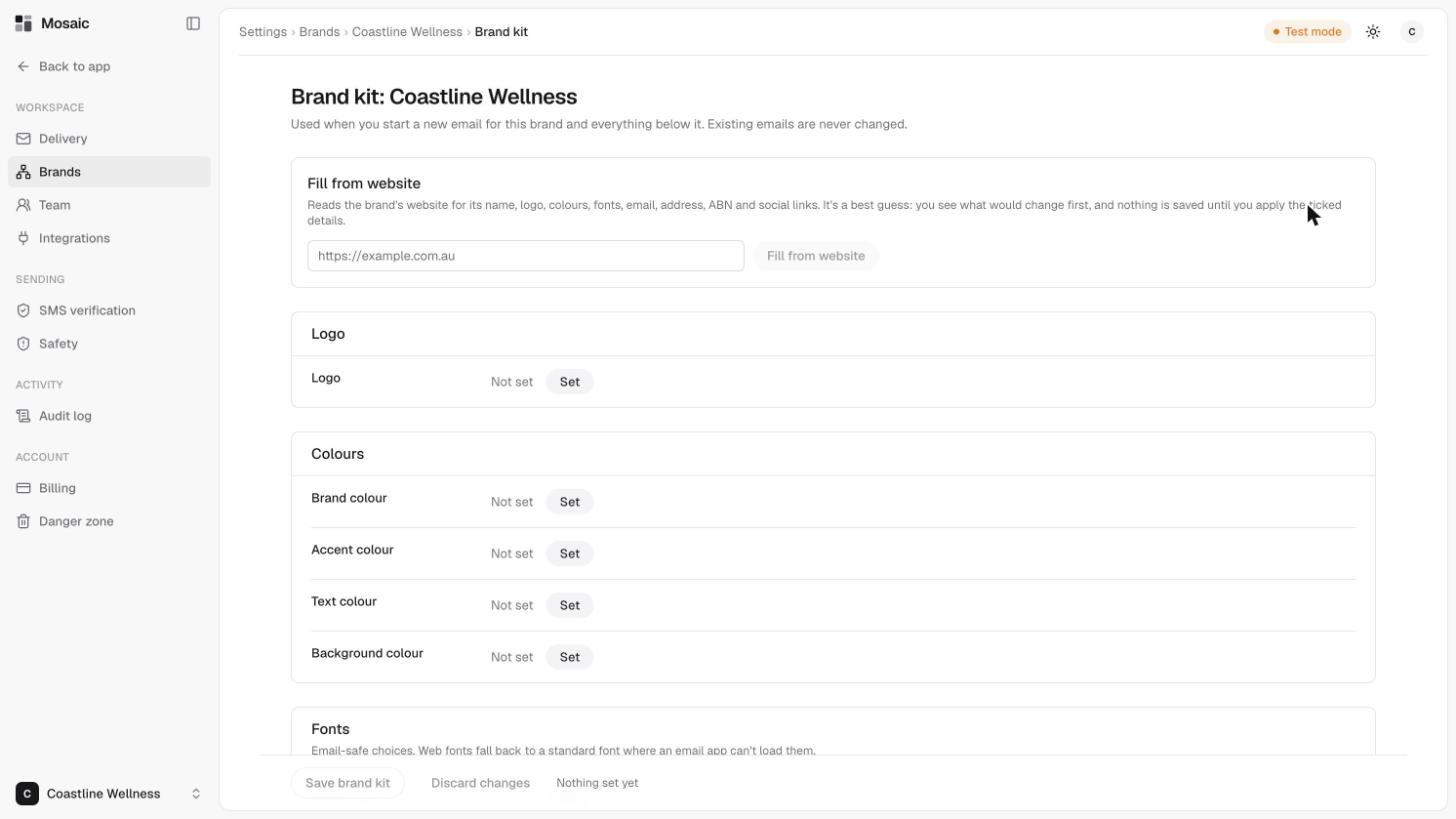
The brand kit is used when you start a new email for that brand and everything below it. Existing emails are never changed.
- Fill from website. Enter your website address and Mosaic reads the brand's name, logo, colours, fonts, email, address, ABN and social links. It's a best guess. You see what would change first, and nothing is saved until you apply the ticked details.
- Logo.
- Colours: brand, accent, text and background.
- Fonts. These are email-safe choices. Web fonts fall back to a standard font where an email app can't load them.
Click Save brand kit when you're done, or Discard changes to start again.
Related
Last updated 5 November 2026