Your team and their roles
Invite people, and choose what each person can do.
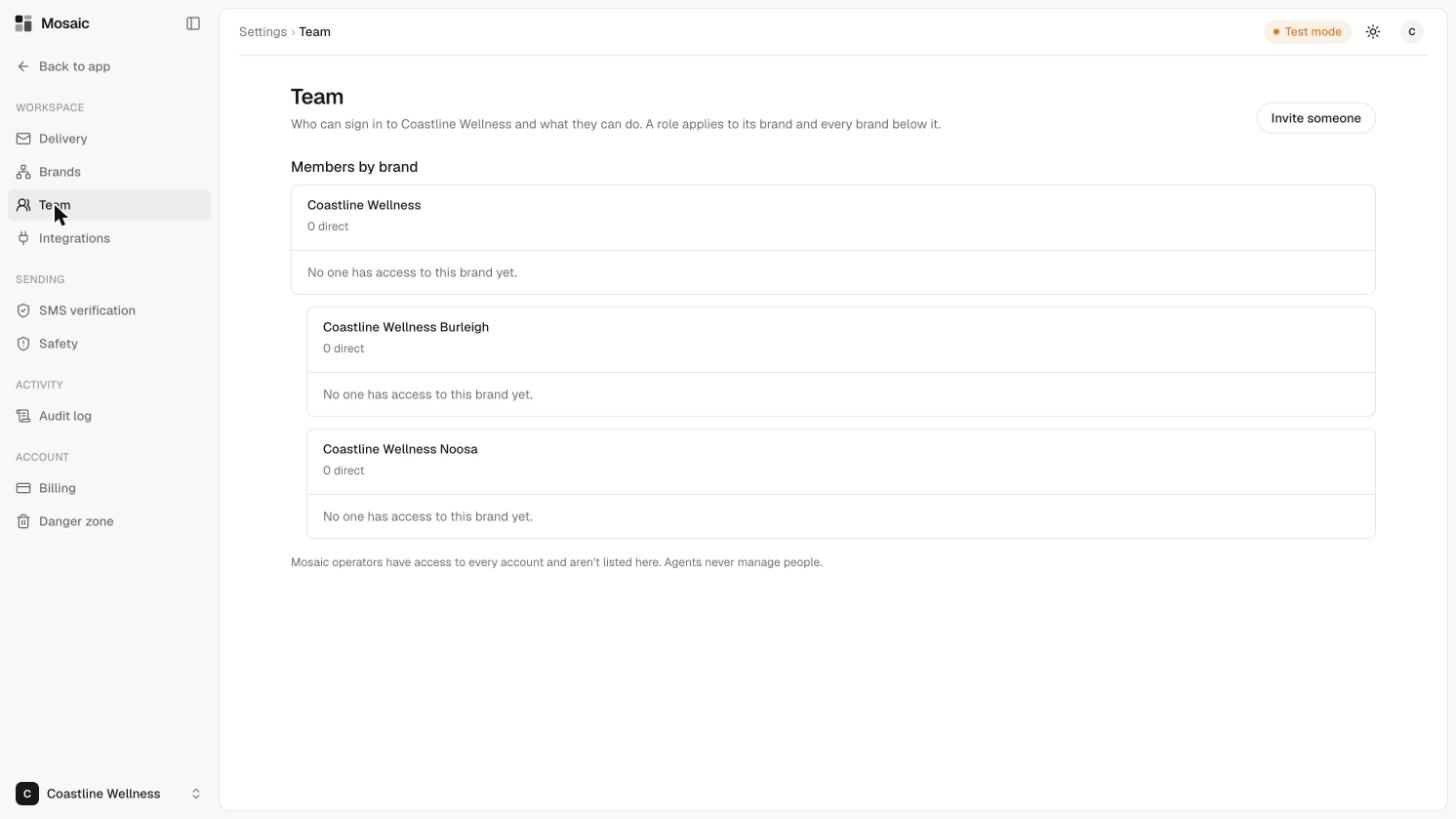
The Team page in Settings shows who can sign in to your account and what they can do. People are listed under each brand. A role applies to its brand and every brand below it.
Roles
| Role | What they can do |
|---|---|
| Account admin | Everything, including approvals, agents and limits. |
| Brand manager | Draft campaigns, templates and audiences, and request sends. |
| Approver | Approve or reject sends. |
| Viewer | Read only. |
Roles are granted at a brand and cover every brand below it. For example, an approver at head office covers every brand under it.
Invite someone
- Open Settings, then Team, and click Invite someone.
- Enter their email.
- Choose the brand. They also get every brand below it.
- Choose their role. Under the box, Mosaic describes what the role can do, for example "Can look, not change" for a viewer.
- Check the email, brand and role are right, then click Send invitation.
They get an email with an invite code to create their account. It works for 7 days. If they already have a Mosaic login, they're added straight away, with no email.
Good to know
- Mosaic operators have access to every account and aren't listed on this page.
- Assistants never manage people.
- Only a person with the approver role can approve a send.
Related
Last updated 5 November 2026