 Mosaic Help Centre
Review and approve a campaign
See exactly what was requested, check who it goes to, and approve or reject it.
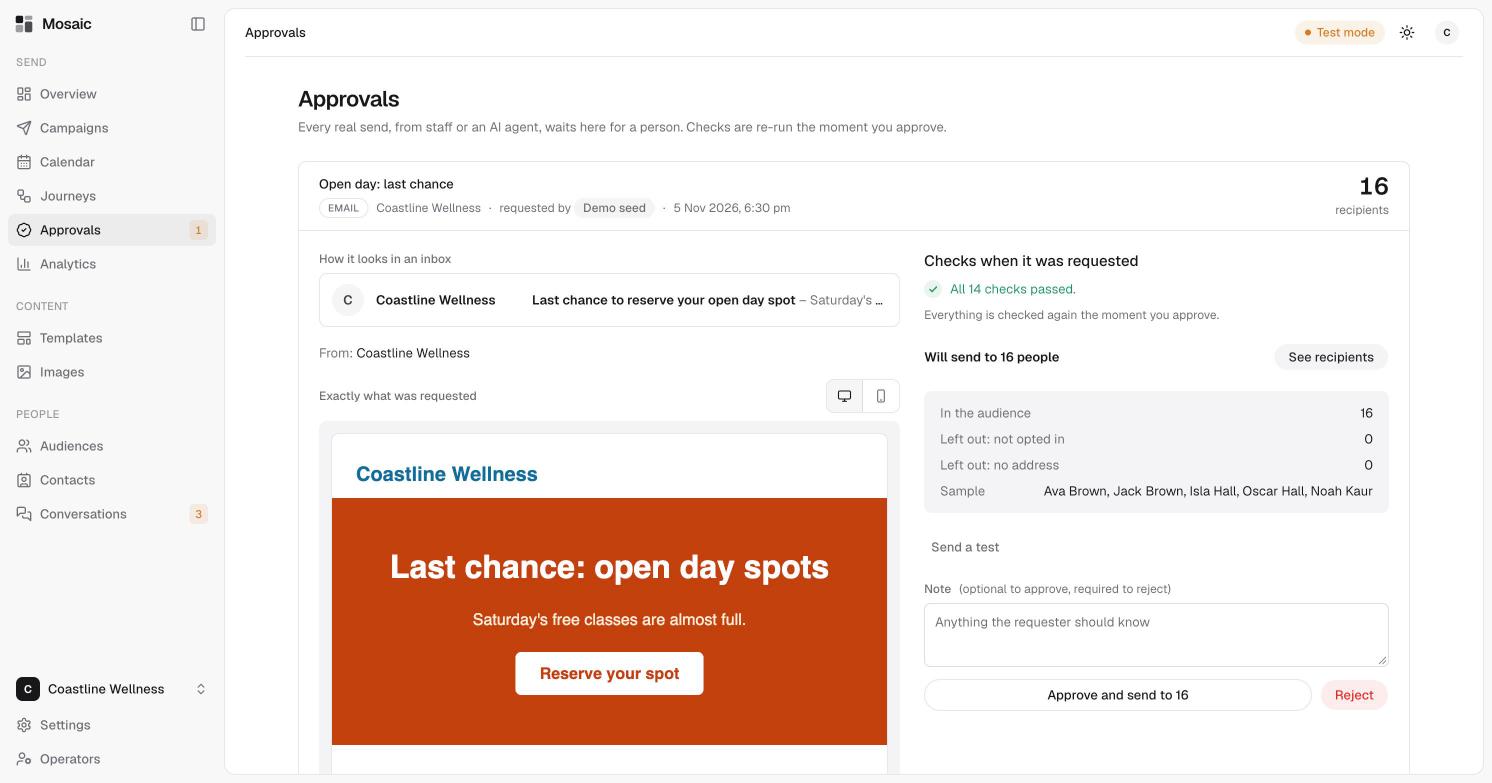
Every real send, from staff or an AI assistant, waits on the Approvals page for a person. Checks are run again the moment you approve.
A number beside Approvals in the sidebar tells you how many are waiting.
What you'll see
- At the top: the campaign's name, channel, brand, who requested it and when. The number on the right is how many people it will go to.
- How it looks in an inbox: the sender and the subject line.
- Exactly what was requested: the full email. Use the desktop and mobile icons to see both views.
- Checks when it was requested: for example "All 14 checks passed".
- Will send to: the number of people. It shows how many are in the audience, how many are left out (for example, people who haven't opted in or have no address), and a sample of names. Click See recipients for the full list.
Approve or reject
- Read the email and check the numbers.
- Optionally, click Send a test to receive it yourself.
- Add a note. It's optional if you approve, and required if you reject.
- Click Approve and send to the number shown, or click Reject.
Once approved, the campaign sends once. Approving can't send it twice. In Test mode, nothing is really sent.
After it's sent
See read a sent campaign for results.