 Mosaic Help Centre
Read a sent campaign
See who a campaign went to, what was sent and how it performed.
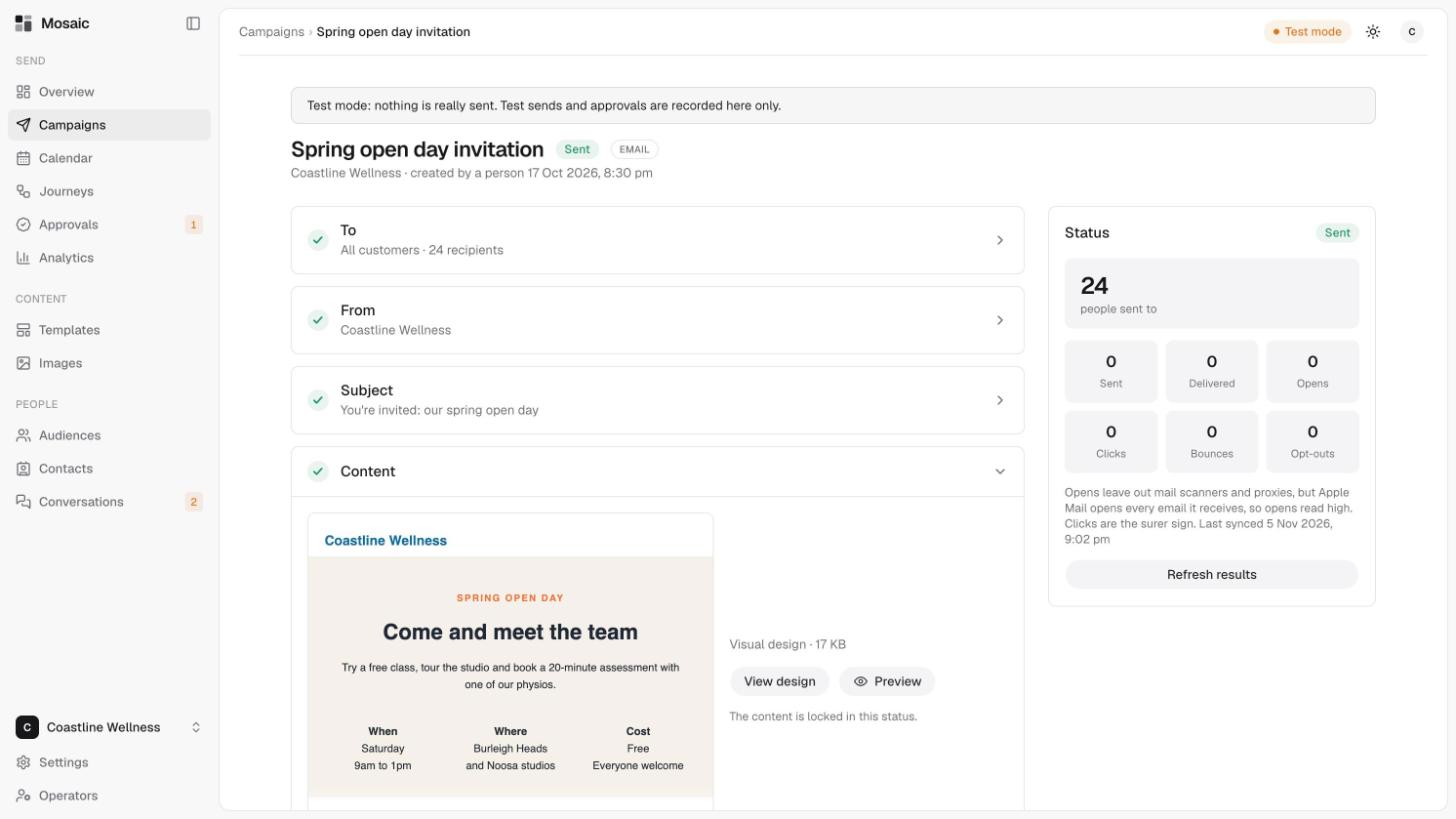
Open any campaign marked Sent from the Campaigns list to see exactly what went out. The page has the same sections as a draft, but the content is locked: "The content is locked in this status."
The sections
- To shows the audience and how many recipients it had, for example "All customers · 24 recipients".
- From shows the sender name.
- Subject shows the subject line, for emails.
- Content shows what was sent. For an email, use View design to see it or Preview to see it with sample details filled in.
- History lists what has happened to the campaign.
The results panel
On the right, Status shows how many people it was sent to, then:
- Sent and Delivered
- Opens (emails) or Clicks
- Bounces, messages that couldn't be delivered
- Opt-outs, people who unsubscribed or replied STOP
Click Refresh results to update the numbers. The panel shows when they were last synced.
Reading the numbers
For emails, opens leave out mail scanners and proxies, but Apple Mail opens every email it receives, so opens read high. Clicks are the surer sign.
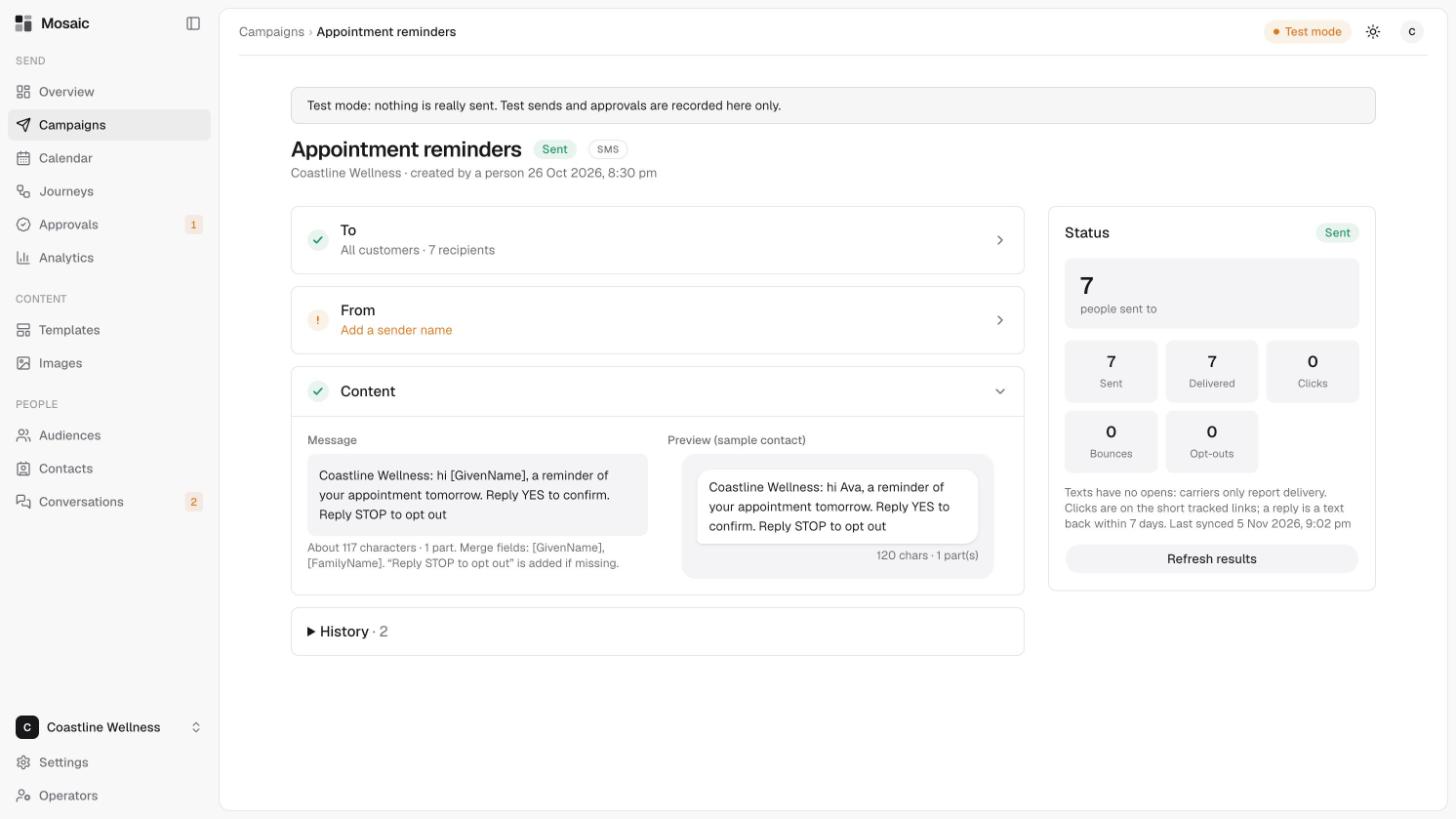
For texts, there are no opens, because carriers only report delivery. Clicks are counted on the short tracked links. A reply is a text back within 7 days.
For a text, the Content section shows the message with a preview using a sample contact, and the length, for example "About 117 characters · 1 part". Merge fields such as [GivenName] are filled in for each person, and "Reply STOP to opt out" is added if it's missing.