Integrations: apps, AI assistants and API keys
Connect other apps, let an AI assistant draft campaigns, and call Mosaic from your own systems.
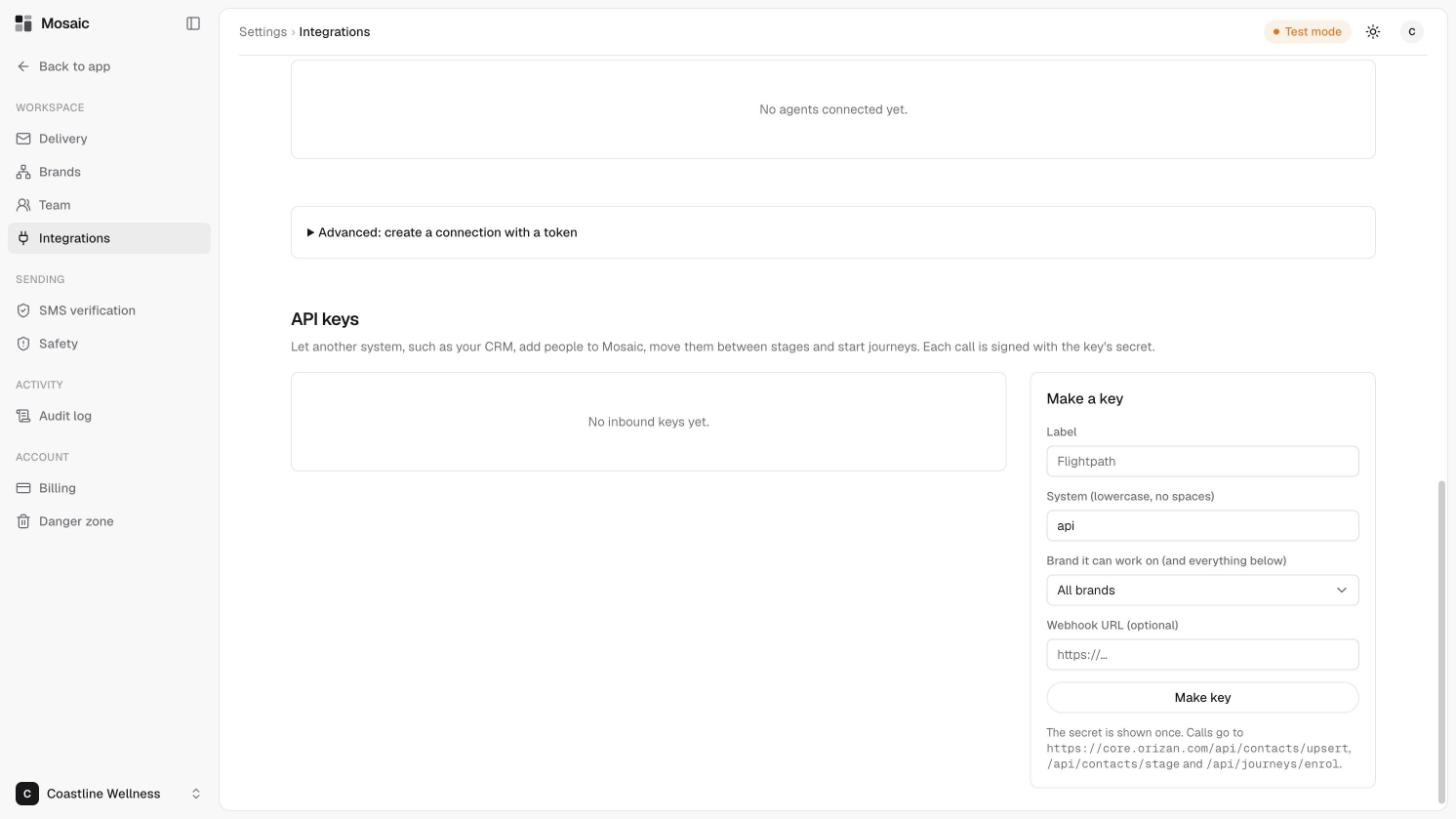
Integrations in Settings connects the apps you use, lets AI assistants work with Mosaic, and lets your own systems call it. Assistants and keys are limited to the brands you choose, and every call is in the audit log.
Connectors
Connect apps you already use so people and jobs sync into Mosaic automatically.
- ServiceM8 imports your clients as contacts.
- n8n lets you build your own automations.
Some connectors are marked Coming soon, including Xero, Flightpath, Google Sheets, Zapier and Webhooks.
AI assistants
You can connect Claude, ChatGPT or any MCP client. Assistants can read, draft and request sends within their brands and limits. They can never approve a send. A person always does that. See how approvals and safety checks work.
To connect one, paste the URL shown on this page into Claude or ChatGPT. Your browser opens, you sign in to Mosaic, choose the brands and what the assistant may do, and it's connected. There's no token to copy.
Connected assistants are listed here. If you don't have any, the page says "No agents connected yet." There's also an Advanced option to create a connection with a token.
API keys
An API key lets another system, such as your CRM, add people to Mosaic, move them between stages and start journeys. Each call is signed with the key's secret.
- Under API keys, find Make a key.
- Enter a label, for example the name of the system.
- Enter a system name, in lowercase with no spaces.
- Choose the brand it can work on, which also covers the brands below it.
- Optionally, enter a webhook URL.
- Click Make key.
The secret is shown once. Copy it somewhere safe straight away, because you can't see it again.
Related
Last updated 5 November 2026