 Mosaic Help Centre
How to build a campaign
Build an email campaign in the drag-and-drop editor, ready for approval.
Build an email campaign from a blank start to ready for approval. Watch the video above, or follow the steps below.
Start the campaign
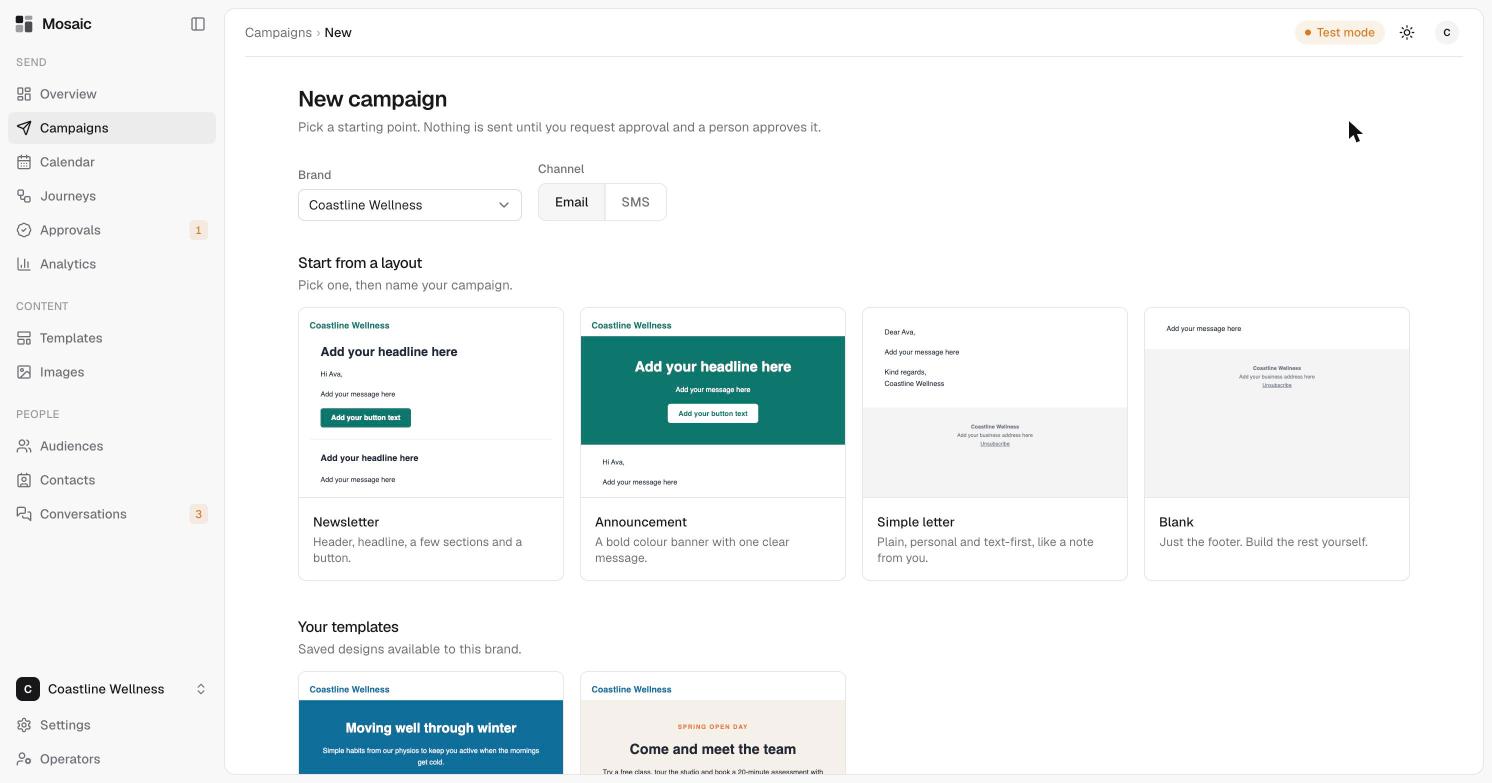
- In the sidebar, open Campaigns, then click New campaign.
- Choose the brand and the channel, Email or SMS.
- Pick a starting layout. Newsletter is a good default. Announcement, Simple letter and Blank are also available, and you can start from one of your own saved templates.
- Give the campaign a title that only your team sees. Then write the subject line and a preheader, the short preview text shown after the subject in an inbox. Click Create campaign. You can change these later.
Design the email
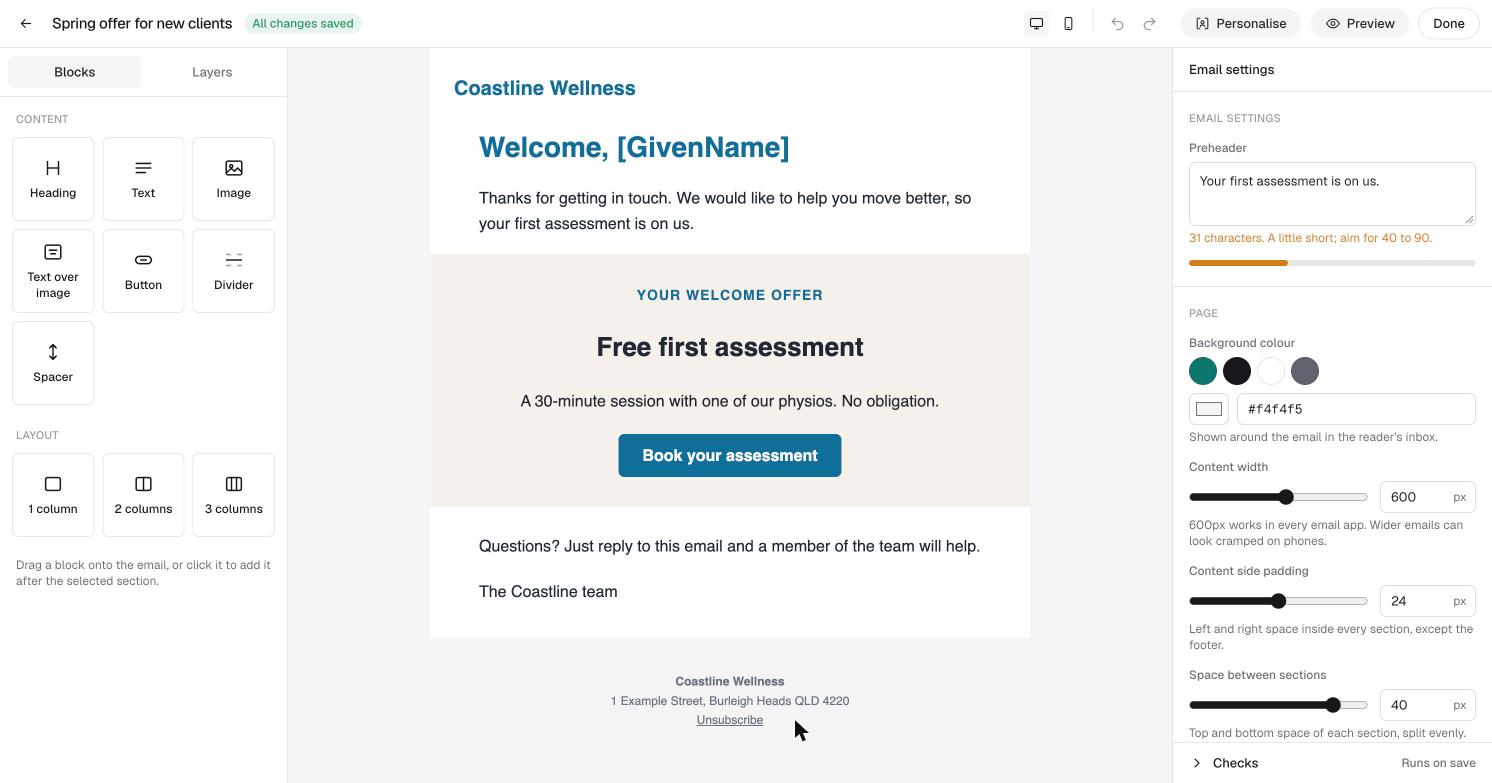
The editor opens with your layout. For a full tour, see use the email editor.
- Add blocks. Drag a block in from the left, or click any block on the email. Blocks include Heading, Text, Image, Button, Divider and Spacer, plus layouts of one, two or three columns.
- Edit text. Double-click any text and type your own words. Changes save automatically.
- Change the look. Click a block to open its settings on the right: alignment, font, size, colour and spacing.
- Personalise. Use Personalise in the text toolbar to add details such as a contact's first name.
Preview
Click Preview to see the email with sample details filled in, on desktop or mobile. Then click Done.
Next step
Back on the campaign, choose who receives it and send it for approval. See choose an audience and send for approval.