Approve a journey and see who's in it
Request approval, then watch people move through the steps.
You approve a journey once. After that, Mosaic sends each step automatically, within its caps, opt-ins and kill switches.
Request approval
- Open the journey and fix everything in Checks that's marked red. The header says how many things there are to fix.
- Click Request approval.
Someone with the Approver role then reviews it on the Approvals page, the same place campaigns are approved. See review and approve a campaign and your team and their roles.
Versions
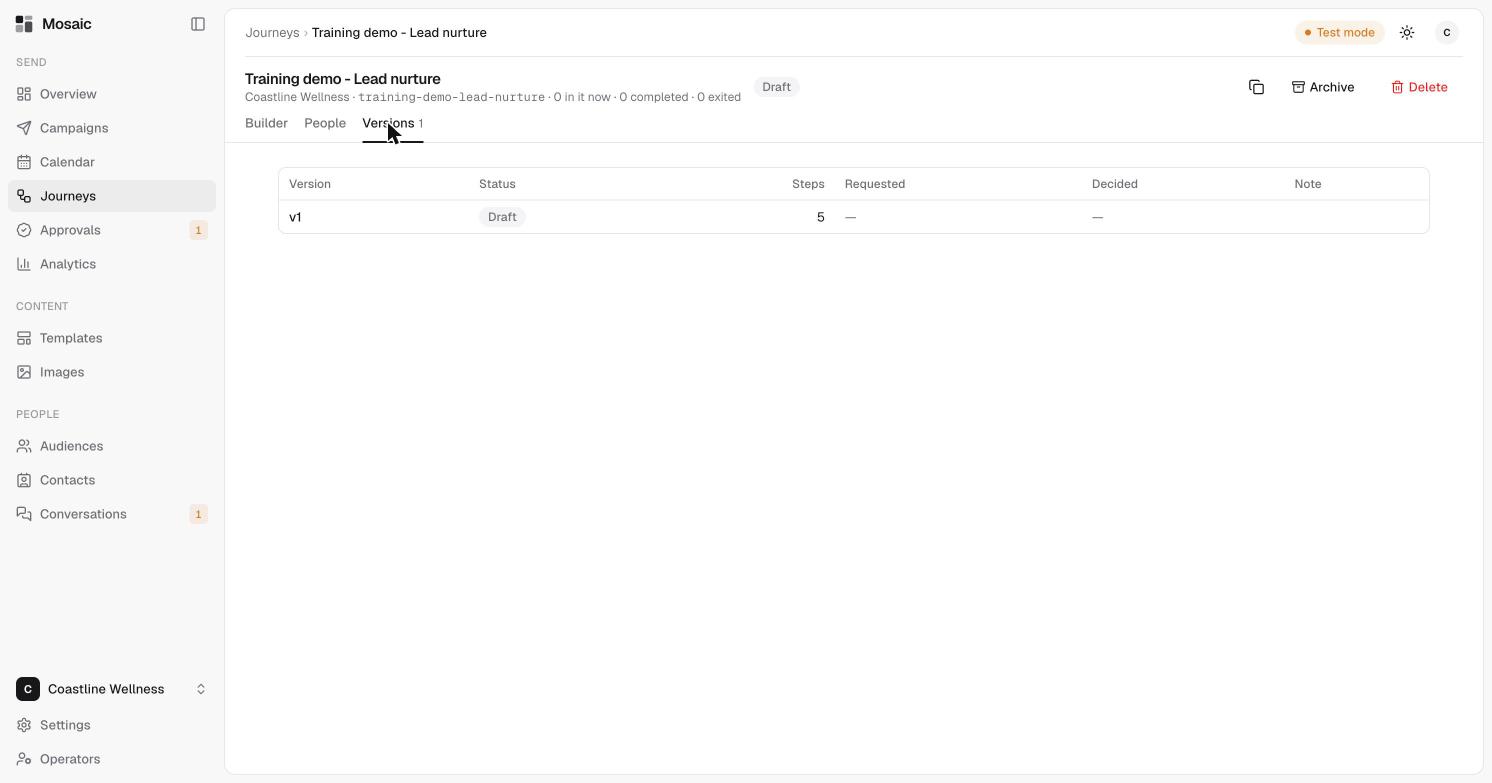
Each time you change an approved journey, it becomes a new version. The Versions tab lists each version with its status, how many steps it has, when approval was requested, when it was decided, and any note.
People
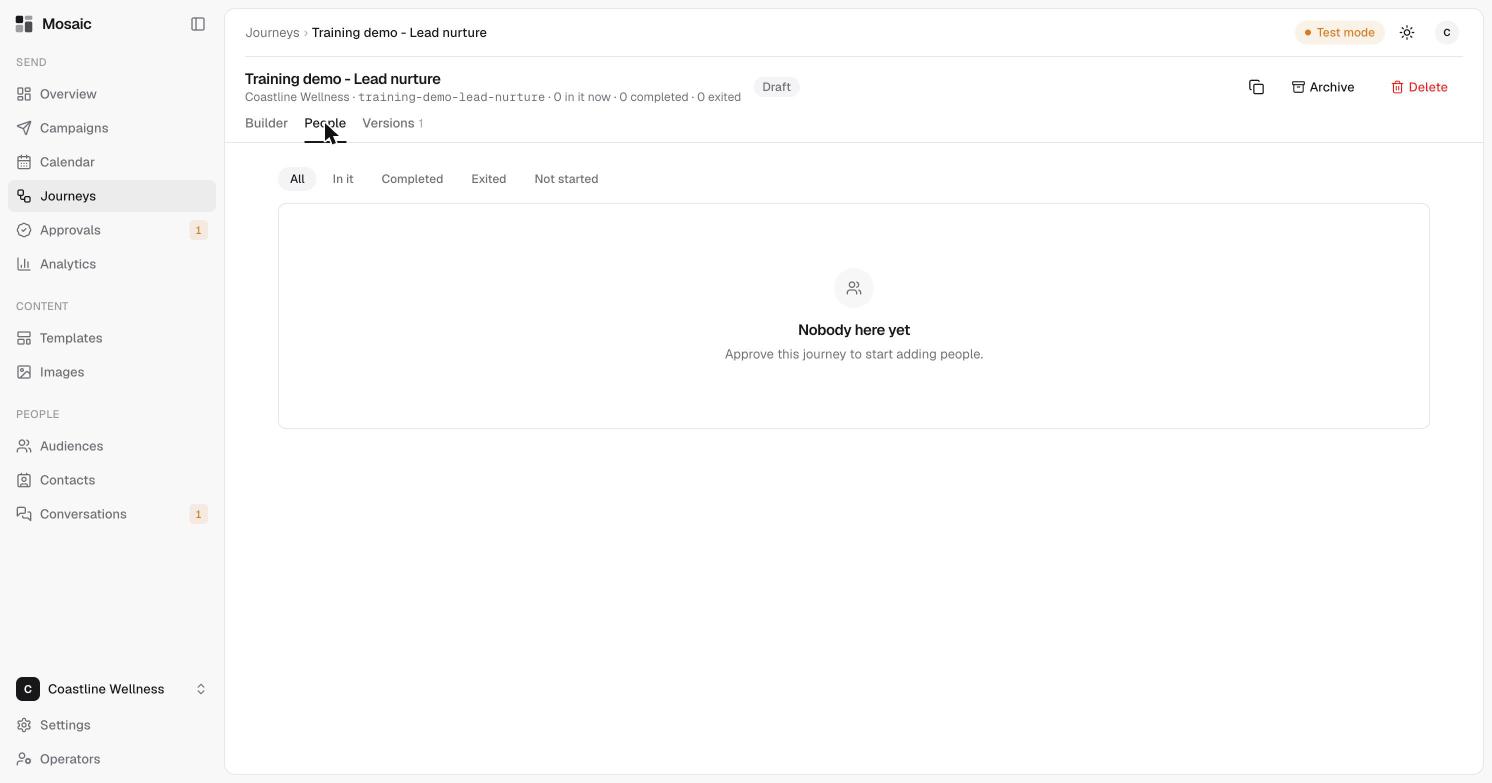
The People tab shows who is in the journey. Filter by All, In it, Completed, Exited or Not started. For each person it shows their status, which version and step they're at, the messages they've had and what's next.
Until a journey is approved, the tab says "Nobody here yet" and "Approve this journey to start adding people." If the journey is paused, it says "This journey is paused. Resume it to add people."
Other controls
At the top right of a journey:
- The copy icon makes a duplicate.
- Archive takes it out of use.
- Delete removes it.
Related
Last updated 5 November 2026