 Mosaic Help Centre
How to add a contact
Add a contact, record their consent and check their profile.
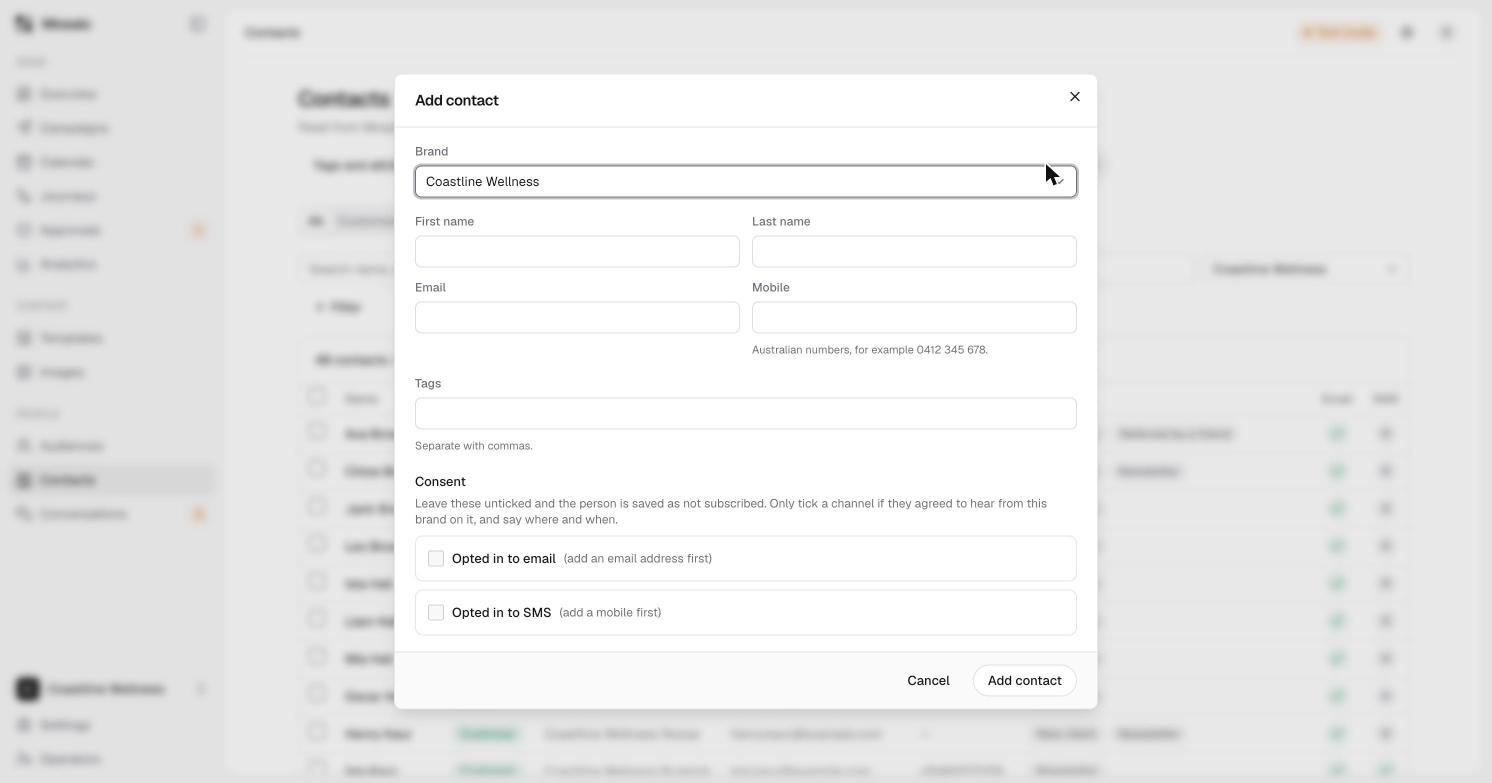
Add a person to Mosaic, record that they agreed to hear from you, and check their profile. The video above takes about a minute. The steps are below.
Steps
- In the sidebar, open Contacts, then click Add contact.
- Choose the brand this person belongs to. A contact stays with one brand.
- Enter their first name, last name and email. A mobile number is optional, but you need one to send texts. Australian numbers look like
0412 345 678. - Add any tags, separated by commas, for example
Newsletter, New client. - Under Consent, only tick a box if the person has agreed to hear from you on that channel. If you tick Opted in to email, write where and how they agreed (for example "Website sign-up form") and the date. Mosaic keeps this as the consent record.
- Click Add contact. Mosaic confirms the person was added and that their consent was recorded.
If you leave both boxes unticked, the person is saved as not subscribed.
Check their profile
Choose Open their card to see the contact's profile. The Consent tab shows who you can contact and on which channel. If SMS says No mobile, you can't text them until you add a number and they agree.