 Mosaic Help Centre
Read a contact's profile
What's on a contact's card, from details and consent to campaigns and conversation.
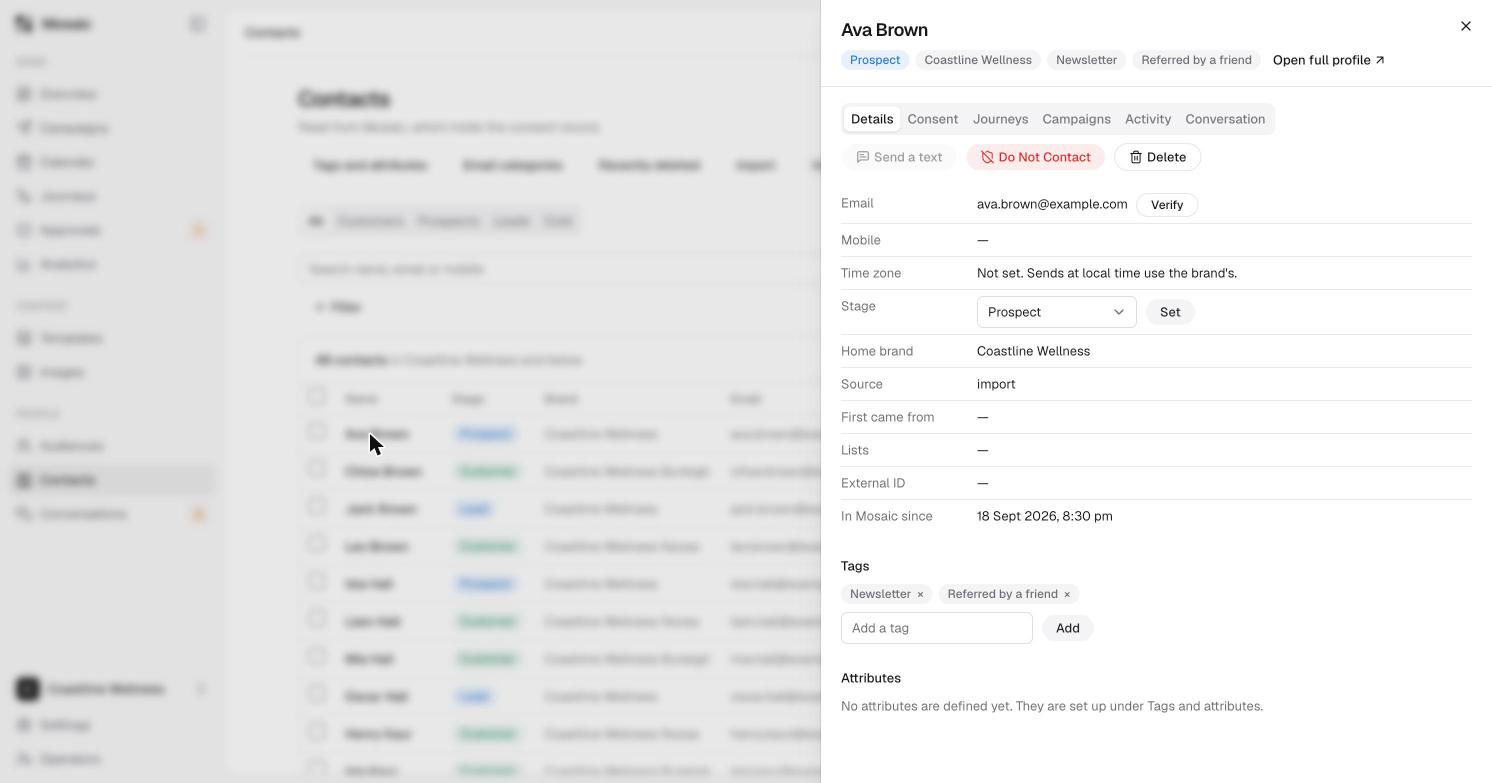
Click anyone on the Contacts list to open their card. Choose Open full profile at the top for the full page.
The tabs
- Details has their contact details and settings.
- Consent shows who you can contact, and on which channel.
- Journeys and Campaigns show what they've been part of.
- Activity is a record of what's happened to the contact.
- Conversation shows their text messages.
Buttons at the top
- Send a text opens the Text panel. See how to send an SMS. It's greyed out if the person has no mobile number.
- Do Not Contact stops messages to this person.
- Delete removes the contact.
The Details tab
- Email, with a Verify button to check the address.
- Mobile.
- Time zone. If it isn't set, texts are sent at the brand's local time.
- Stage. Choose a stage, then click Set.
- Home brand, Source, First came from, Lists and External ID.
- In Mosaic since.
- Tags, which you can add or remove. See tags and attributes.
- Attributes, if your account has any.
The Consent tab
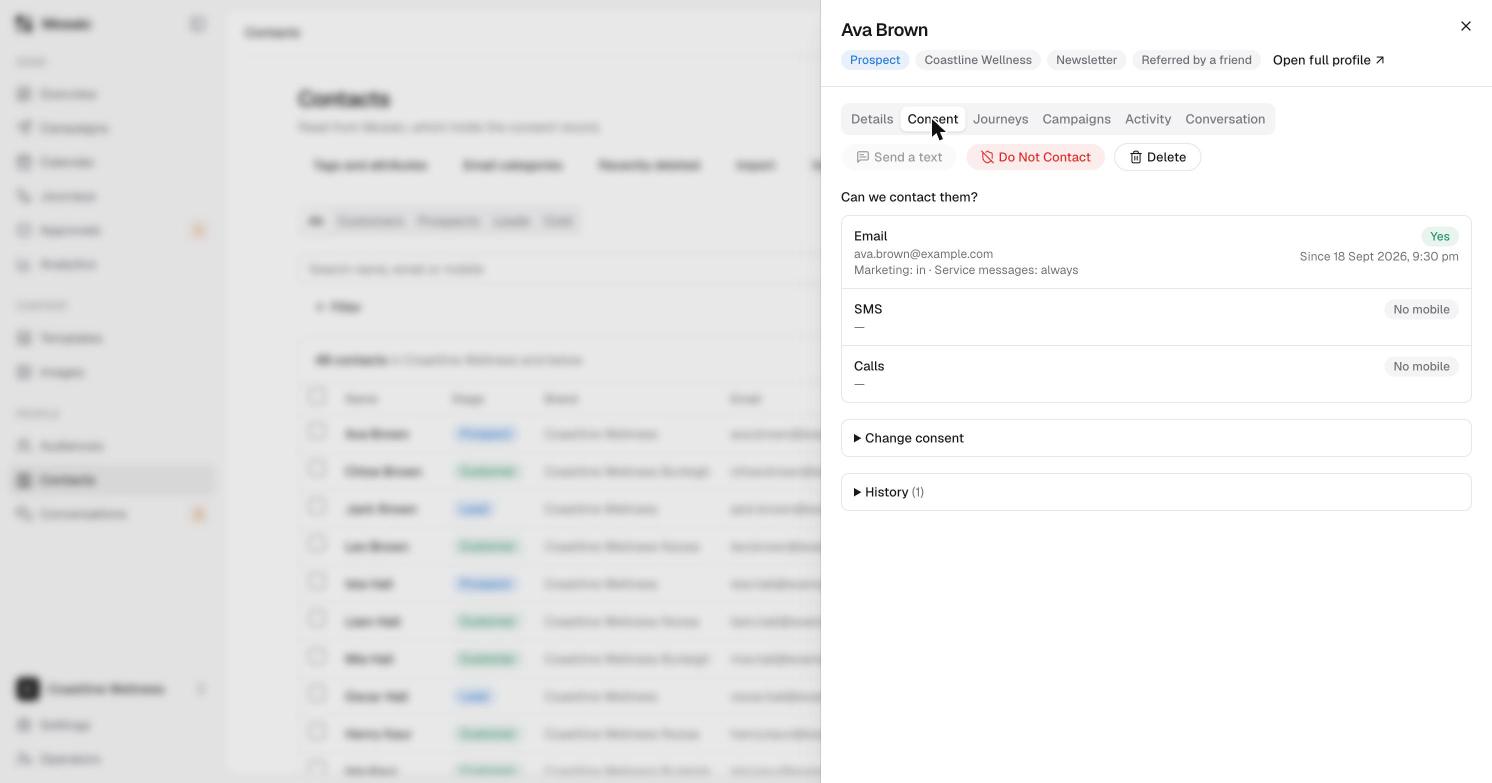
The Consent tab answers "Can we contact them?" for Email, SMS and Calls. For email it shows whether they're in for Marketing and for Service messages, and the date they agreed. If a channel says No mobile, add a mobile number first.
Open Change consent to update it, and History to see past changes. See consent explained.